Ads 468x60px

Google Updates YouTube for iOS App, Adds iPad, AirPlay, iPhone 5 Support

Google has updated the YouTube for iOS app, adding native support for the iPad and the iPhone 5, as well as full support for streaming videos via AirPlay, reports The Next Web.
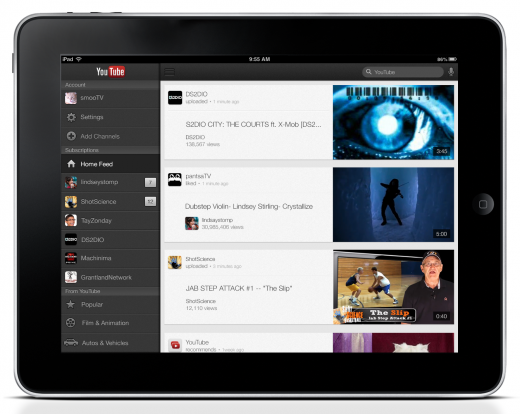
NewImage
Google's Horia Ciurdar says that more than 25 percent of all YouTube watching happens on mobile. Since the launch of the YouTube app back in September, Ciurdar says Google has "been hard at work to improve the app based on your feedback."

Now the YouTube app will get 'enhanced' AirPlay support, letting you shoot your videos over to your Apple TV. Videos are also said to start faster and play more smoothly. Google has also improved VoiceOver support for those with visual impairments.
During the iOS 6 Beta, Apple removed the native YouTube app that had been included on every iOS device since the platform was introduced. Once iOS 6 was publicly announced, Google released a native YouTube app for the iPhone.

YouTube for iOS is available as a free download from the App Store. [Direct Link]


Create a New User Account on the Mac to Separate Work & Play

Create a new user account in Mac OS X

Creating a new user account and using that exclusively for work or play is an excellent way to increase your productivity by reducing distractions. This makes it very easy to use and carry just a single Mac to serve as both a work and personal computer, and can be a real lifesaver for those of us who are either workaholics or just easily distracted by all the stuff that resides on the computer.

The process below walks through how to create a new user account in Mac OS X, if you're already familiar with how to do that then skip through it and just take the general advice here:

  • Open System Preferences from the  Apple menu
  • Choose "Users & Groups" and click the lock icon in the corner to make changes, enter the password when requested
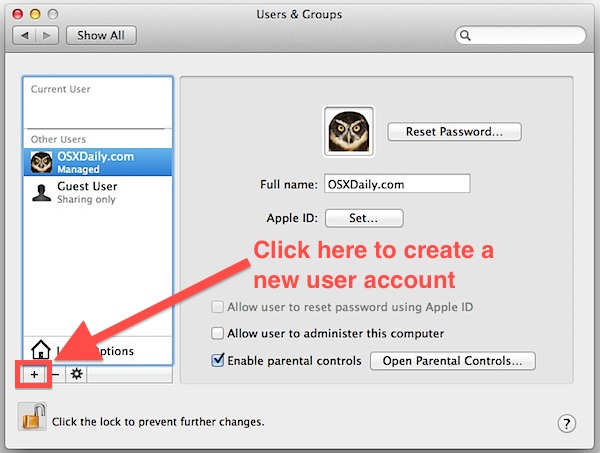
  • Click the [+] plus button to add a new user
  • Create a new user account in Mac OS X

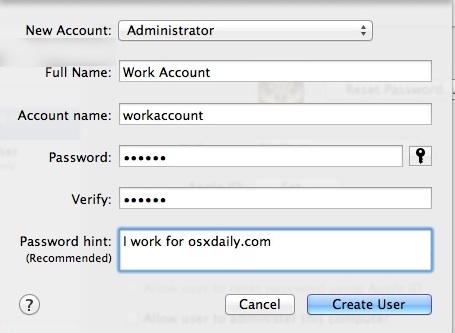
  • Make the new account type Administrator or Standard depending on your security preferences, fill in the rest of the information then click "Create User"
  • Creating the new user account on Mac OS X

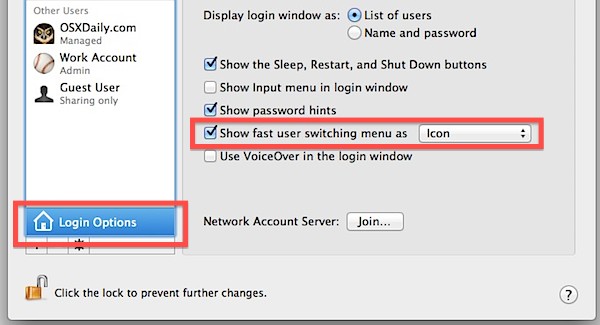
  • Now enable Fast User Switching by clicking on "Login Options" and checking the box next to "Show fast user switching menu", this lets you easily switch between accounts by pulling down a menu bar
  • Show Fast User Switching to quickly change user accounts

You're now ready to go with the new "work" account (or "play" account).

Get in the habit of only using this account for it's given purpose, and use Fast User Switching to switch back and forth between the work and play accounts when needed, though there's no harm in logging out of the other account either since OS X now can reopen your prior session with all of its windows and apps.

The new user account will have access to all the same apps as your primary account so long as they are stored in the primary /Applications/ folder, which is the default setting for anything installed in OS X be it from a DMG, PKG, or the App Store. If you want to go a step further, you can use Parental Controls to restrict app usage and prevent yourself from playing games, opening Facebook, and otherwise wasting your time with unproductive apps and websites. You can really get strict with yourself by creating standalone apps of websites you absolutely must access, then block everything else, but we're assuming you have more self control than that.

Thanks for the tip idea Ryan


Turn iOS Maps into a Virtual Globe by Zooming Out

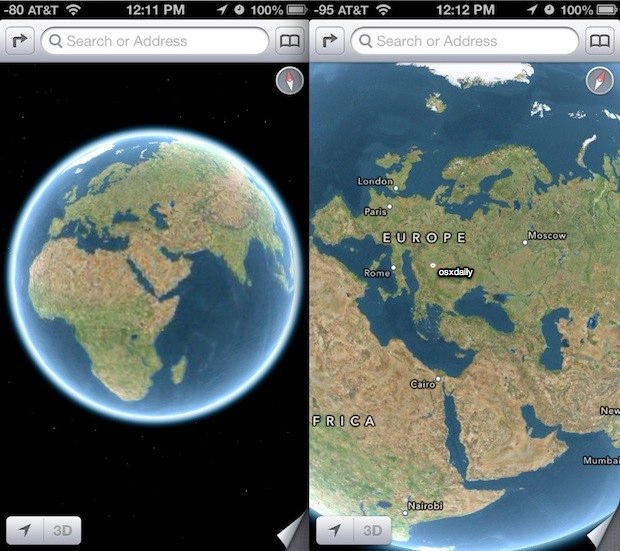
View Maps in Globe View

Sometimes looking at a flat map view just isn't what you're looking for, but with Apple Maps you can now view the entire world map as a nice round globe too. You'll need to have Maps view set in either Hybrid or Satellite mode to be able to see the globe view, that can be done by tapping the page curl in the corner then selecting either one, then all you need to do is continuously pinch to zoom out until the globe view appears. You can rotate it around in any direction you want, and if you get too disoriented just tap the compass icon to reorient north again.

Play the globe travel game, use it for help with geography homework, figure out how where things are in relation to each other, or just enjoy having the whole world in the palm of your hand. It may not be the single most useful feature of iOS Maps but it's fun to play around with and it beats having to download another app just to see the world in true form.

Globe view is available on any iPad, iPod touch, or iPhone running iOS 6 or later with Apple maps.